
 English
Client Messages #
While you build a campaign, your customers see —among other screens— the thank-you message at the end of a funnel, the page that opens when someone clicks an unsubscribe link, the verification steps of a form, or the waiting screen of a busy campaign. Prisma Campaigns shows predefined texts in these places, and you can update them under Settings/Language & Client Messages.
For an overview of the settings page, see Language and Client Messages.
How Client Messages Work #
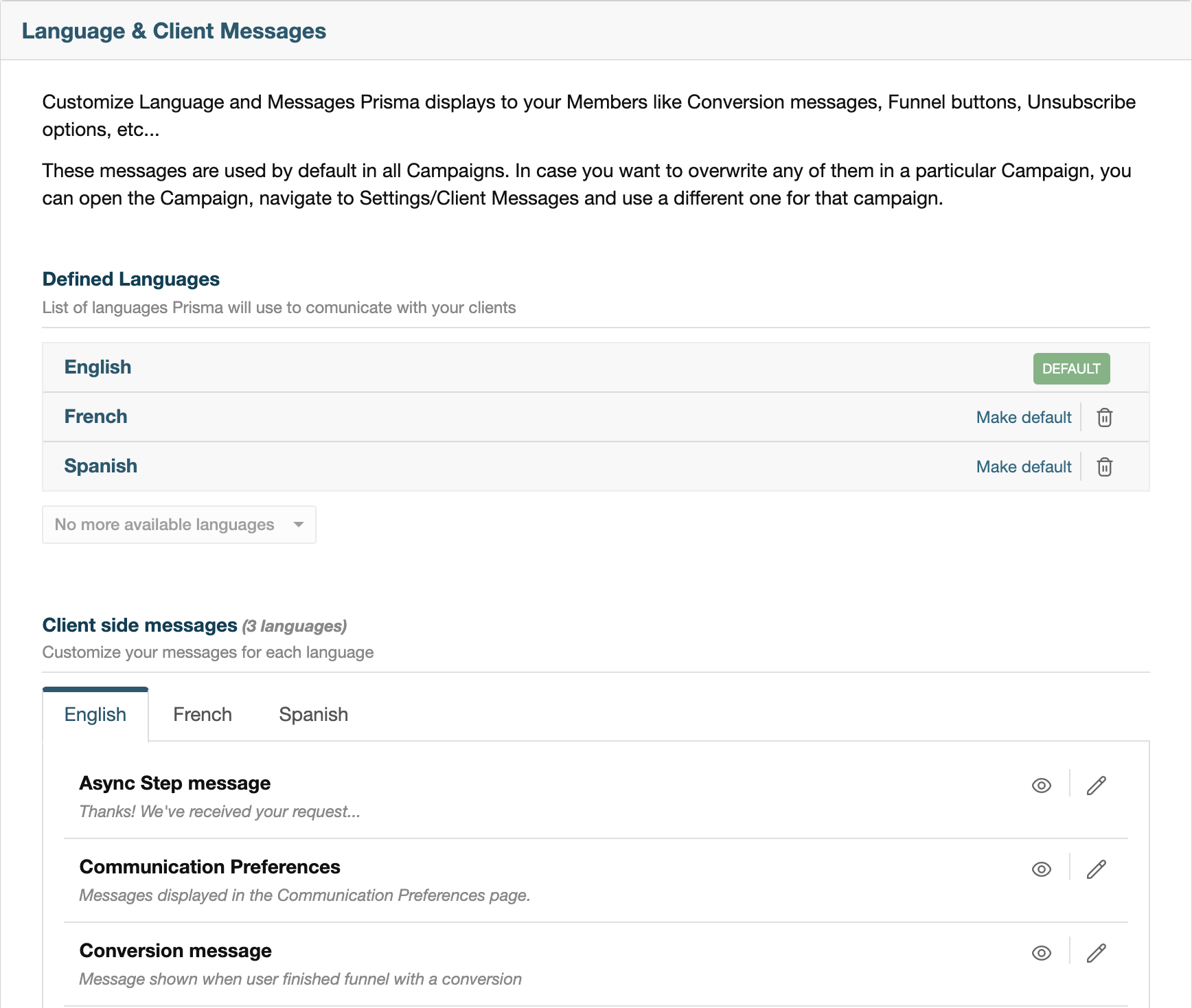
Under Settings/Language & Client Messages you will find two blocks:
- Defined Languages: the languages Prisma Campaigns can use to communicate with your customers (English, Spanish, and French) with one of them marked as DEFAULT. Click Make default next to another language to change it, or the trash icon to remove one that you don’t use.
- Client side messages: one tab per language, with one row per message. Each row has a preview icon (eye) and an edit icon (pencil).
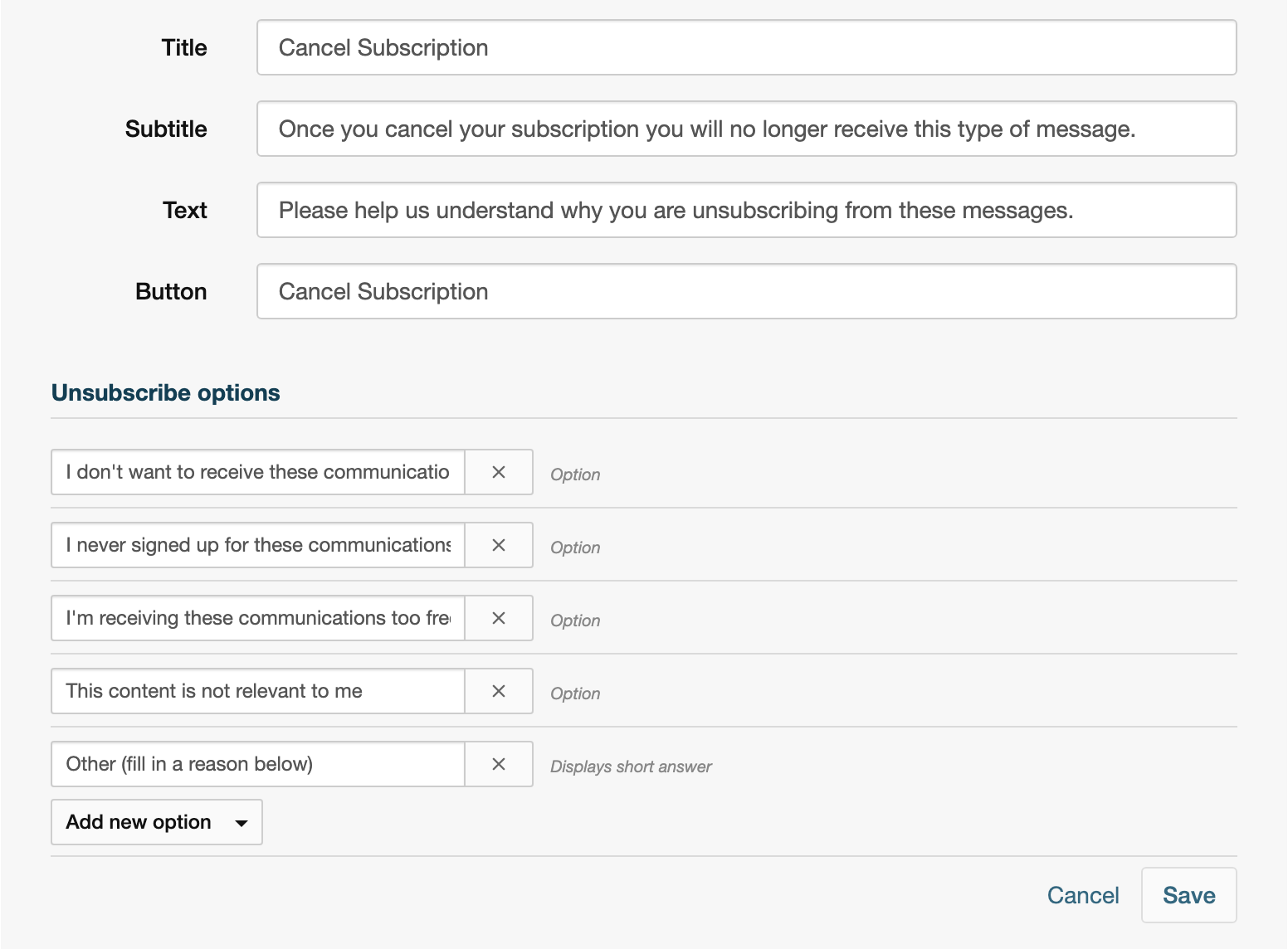
Each message has its own set of fields (titles, texts, button labels, and options):
Reset to default restores the original texts for that language, and Cancel discards your edits.
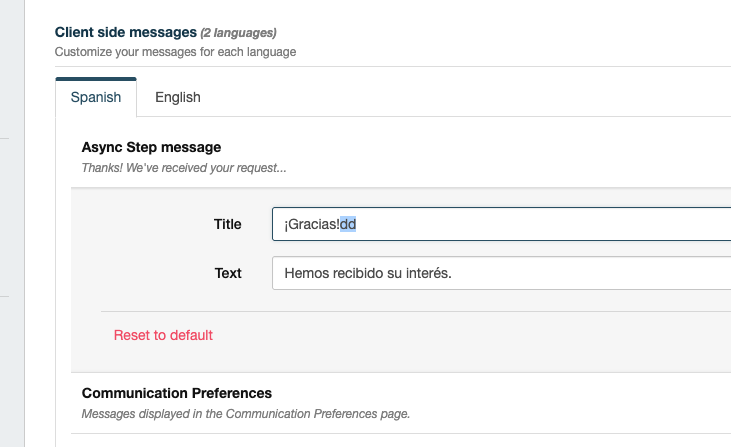
Clicking Save inside a message only keeps your edits on the page. To apply them, click the Save button at the bottom of the Language & Client Messages page. Until you do, customers will keep seeing the previous texts.
Keep the following in mind while editing:
- Language. Prisma Campaigns shows each customer the messages of their language when that information is available in their profile, and the messages of the default language otherwise. Remember to update every language tab you use.
- Campaign-specific messages. The texts defined here apply to all campaigns. To use different texts in a particular campaign, open the campaign and go to Settings/Language & Client Messages, as explained in Campaign Settings.
- Formatting. Most funnel and unsubscribe texts accept basic HTML, such as
<b>for bold text or<br>for a line break. The standalone error pages (Not Found, Customer Not Valid, Finished Visit, and Unsubscribe not allowed) display plain text only. - Placeholders. Some texts include values between braces, such as
{0}. Prisma Campaigns replaces them when the message is shown (for example, with the number of seconds left or the name of a category). Keep them in your version of the text. - Preview. The eye icon renders the message inside one of your landing pages so you can check how it looks with your styles. Choose the landing page in the Preview message list; it must contain the plugin the message uses (for example,
{{plugin.unsubscribe}}for unsubscribe messages). Some messages, such as the verification steps, are only displayed inside a funnel step and show little or nothing in the preview.
Depending on your company’s configuration, the names of some messages use Member instead of Customer (for example, Member Not Valid). They are the same messages.
Funnel Messages #
These messages are displayed while a customer goes through a campaign funnel. The end-of-funnel screens (conversion, finished, async step, redirect, dismissed, and ended campaign) appear inside the landing page of the campaign. When the funnel opens in a pop-up or modal window, the window closes instead.
| Message | When the customer sees it | Texts you can change |
|---|---|---|
| Conversion message | The customer completes the funnel and the campaign counts it as a conversion. It is also shown if the customer opens the funnel again after converting. | Title, text |
| Finished message | The customer reaches the last step of the funnel without converting. | Title, text |
| Async Step message | The funnel pauses until something else happens, for example a step that waits for the customer to interact with an email or SMS. | Title, text |
| Redirect Fallback | The funnel redirects the customer to another page. It includes a link in case the redirection doesn’t happen automatically; {0} is replaced with the destination URL. | Title, text |
| Dismissed Campaign | The customer clicks the dismiss link of a campaign shown in a landing page (see Allow Dismiss campaign in Unsubscribe & Dismiss). | Title, text |
| Ended Campaign | The customer opens a campaign that is no longer active. | Title, text |
| Funnel Navigation | Every funnel step. | Buttons, dismiss link, error messages, and file upload texts (see below) |
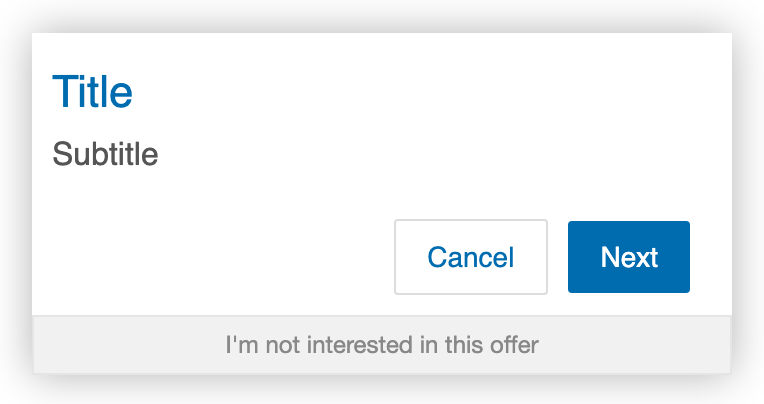
Funnel Navigation groups the texts shared by all funnel steps:
- Navigation: the labels of the Cancel, Ok, Confirm, Next, Submit, and Close buttons, and the Dismiss link text (by default, “I’m not interested in this offer”).
- Error messages: the validation messages shown when a required field is empty, a date or email address is invalid, or a minimum or maximum number of selections isn’t respected.
- Files: the texts of file upload fields, such as the drop area label and the messages for files that are too big, have an invalid type, or exceed the allowed number. Values like
{{maxFilesize}}and{{maxFiles}}are replaced with the limits of the field.
Error and Status Pages #
These pages are displayed on their own, without a campaign landing page, when a link can’t continue. They show plain text in three parts: title, subtitle, and text.
| Message | When the customer sees it |
|---|---|
| Not Found | The link the customer opened is no longer valid: the campaign was unpublished or is outside its schedule, the link is incomplete or expired, or the campaign has no unsubscribe landing page configured. |
| Customer Not Valid | The customer opens a campaign they are no longer eligible for, for example because they already converted, dismissed it, or unsubscribed. |
| Finished Visit | The customer opens a link of a visit that was already completed in another campaign. |
Customer Not Valid and Finished Visit always use the texts of the default language and ignore campaign-specific messages.
Unsubscribe Pages #
When a customer clicks the unsubscribe link of an email or SMS, Prisma Campaigns opens the unsubscribe landing page configured in the campaign (see Unsubscribe & Dismiss). That landing page must include the {{plugin.unsubscribe}} plugin, which displays one of the following messages depending on whether the configured scope is the campaign, its category or group, or all communications. A separate campaign setting determines whether the resulting unsubscription applies to all outbound channels or only the channel through which the customer was contacted.
| Message | When the customer sees it | Texts you can change |
|---|---|---|
| Unsubscribe from Campaign | The campaign unsubscribes customers only from that campaign. It is also used when the campaign has no category or group assigned. | Title, subtitle, text, button, unsubscribe options |
| Unsubscribe from Category & Group | The campaign unsubscribes customers from its category, its group, or both. In the subtitle, {0} is replaced with the name of the category, the group, or both. | Title, subtitle, button, unsubscribe options |
| Unsubscribe from all communications | The campaign unsubscribes customers from all communications. | Title, subtitle, text, button, unsubscribe options |
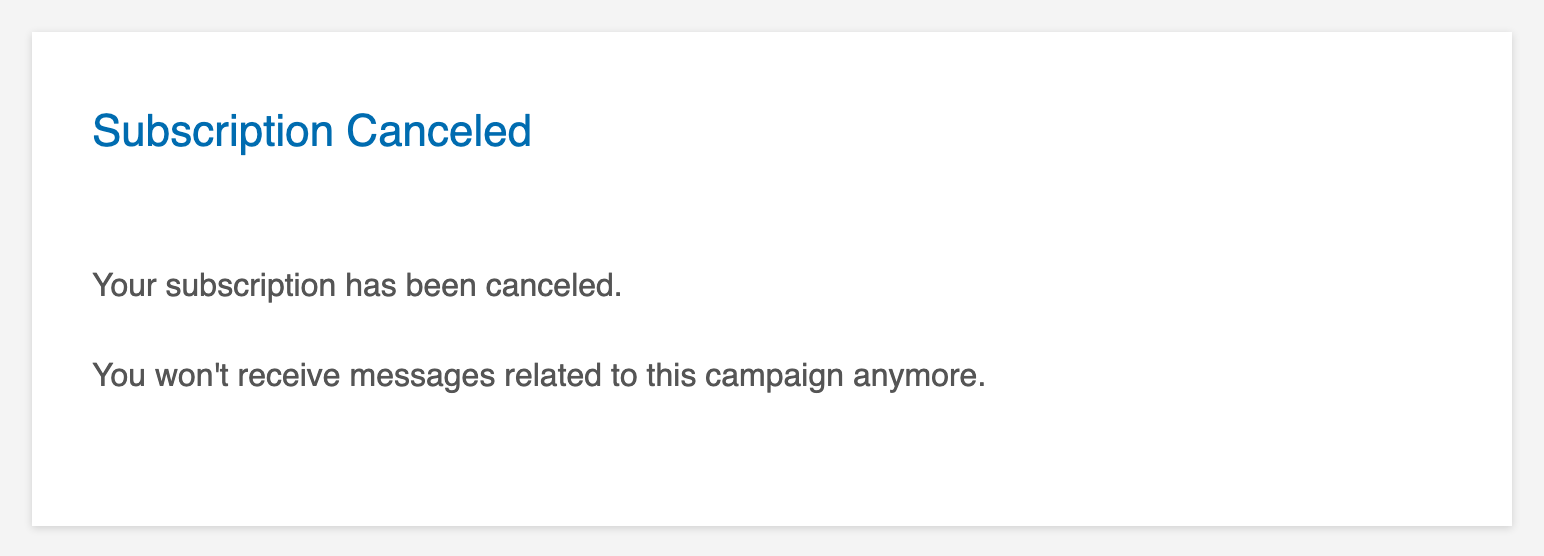
| Unsubscribe from Campaign - Confirmation, Unsubscribe from Category & Group - Confirmation, Unsubscribe from all communications - Confirmation | The customer confirms the unsubscription. In the category and group confirmation, {0} is replaced with the category, the group, or both. | Title, text |
| Unsubscribe not allowed | The campaign belongs to a category excluded from communication policies (for example, regulatory communications), so the customer can’t unsubscribe. | Title, subtitle, text |
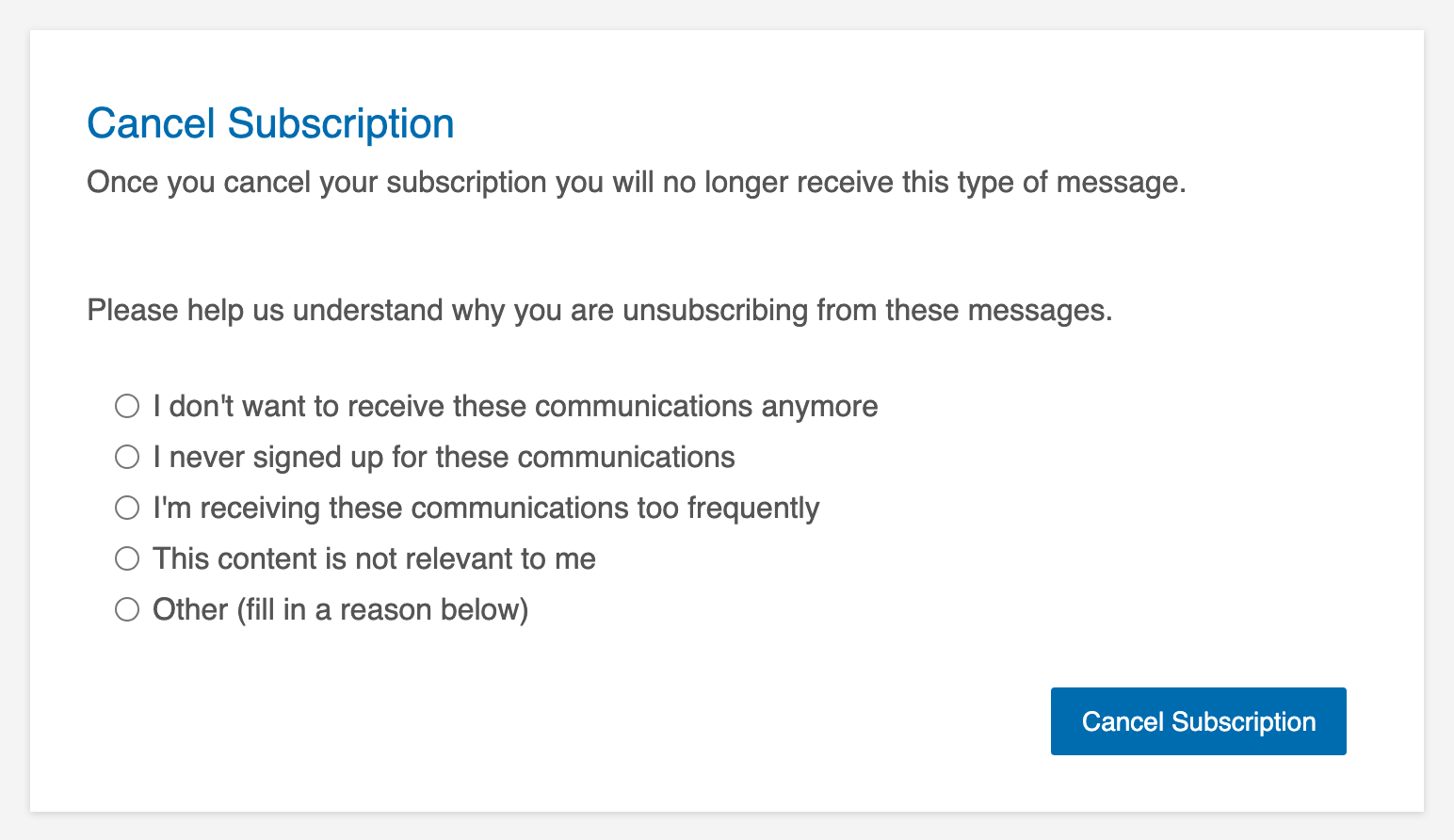
The Unsubscribe options are the reasons a customer can choose before confirming. Use Add new option to add a reason, either as an Option (a fixed answer) or as Displays short answer (the customer types their own reason in a text box), and the × button to remove one. Keep in mind that:
- On the unsubscribe page, the options are listed in alphabetical order, with the short answer option always last.
- The category and group pages display the text (the paragraph above the options) of Unsubscribe from Campaign, so review both messages together.
Unsubscribe Default Link #
When an email doesn’t include an unsubscribe link or a communication preferences link, Prisma Campaigns can add an unsubscribe link at the bottom of the message. Unsubscribe default link sets the text of that link (by default, “Unsubscribe”).
Communication Preferences Page #
The Communication Preferences message contains every text of the page where customers choose which channels, categories, and groups they want to receive communications from. The page is displayed by the {{plugin.communication-preferences}} plugin, as explained in Communication Preferences Page.
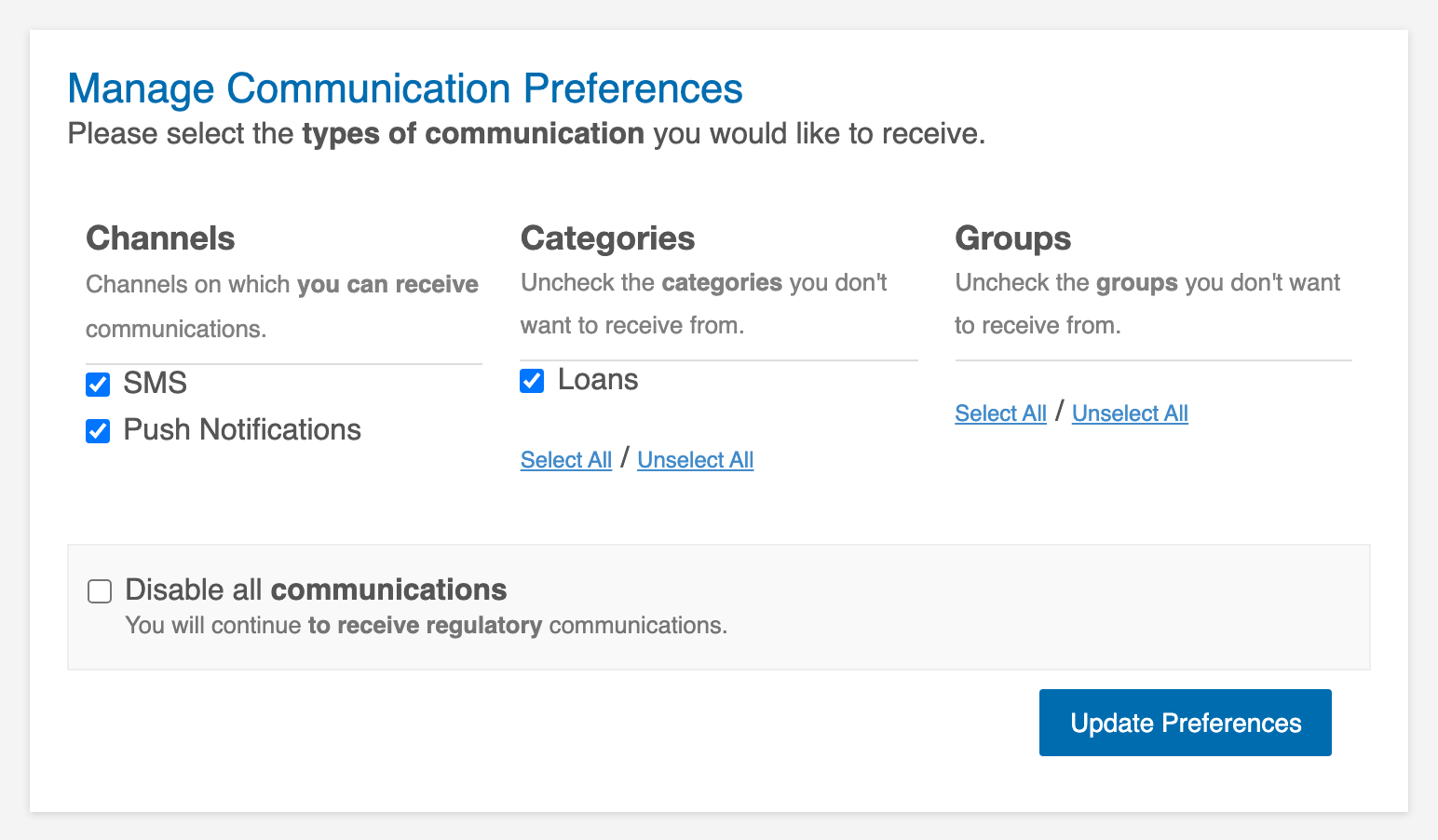
You can change:
- The page title and subtitle, and the label of the submit button (by default, Update Preferences).
- The title and subtitle of the Channels, Categories, and Groups sections, and the name displayed for each channel (Email, SMS, Push Notifications, and Direct Mail).
- The Select All and Unselect All links.
- The option to disable all communications, its disclaimer (by default, “You will continue to receive regulatory communications.”), and the message shown when all outbound communications are already disabled.
- The title and text displayed after the customer saves their preferences.
Verification Messages #
These messages are shown inside the verification steps of a funnel (see Funnel Steps), when those steps are enabled for your company.
| Message | Funnel step | Texts you can change |
|---|---|---|
| Phone validation by sending a code | Phone/Email Verification that sends a code by SMS. | Title, subtitle, code instructions, Send Code, resend and Verify buttons, wrong code and sending error messages, and the texts to abandon the process |
| Phone number validation by sending a link to a web page. | Phone/Email Verification that sends a link by SMS. | Title, subtitle, send and resend buttons, sent message, sending error, and the texts to abandon the process |
| Email verification | Phone/Email Verification that sends a link by email. | Title, subtitle, send and resend buttons, sent message, sending error, and the texts to abandon the process |
| One time password verification | OTP Verification. The title changes depending on whether the code was sent by SMS, email, or both. | Sent code messages, code instructions, resend and Verify buttons, wrong code message, and the texts to abandon the process |
| Identity Validation | Identity validation steps with an external provider, while the validation is in progress. | Title, text |
In the resend buttons, {0} is replaced with the number of seconds the customer must wait before requesting a new code or link.
Virtual Queue #
When a campaign limits the number of customers that can go through its funnel at the same time (Limit number of concurrent users in the funnel settings) and the limit is reached, new customers wait in a queue. The Virtual Queue message sets the title, the message, and the help text displayed below the customer’s position in the queue (by default, “Waiting position is refreshed automatically.”).
Which Messages to Review First #
All messages have sensible default texts, so you don’t need to change every one of them. These are the ones customers see most often, and the best candidates to adapt to your institution’s voice:
- Conversion message and Finished message, the last screen of most funnels.
- Funnel Navigation, especially the button labels and the dismiss link.
- The Unsubscribe messages and their options, if your campaigns include unsubscribe links.
- Communication Preferences, if you offer customers a preferences page.
- Not Found and Ended Campaign, which customers see when they open an old link.
Review the verification and Virtual Queue messages only if your campaigns use those features. Whatever you change, update all your language tabs and click Save at the bottom of the page.